
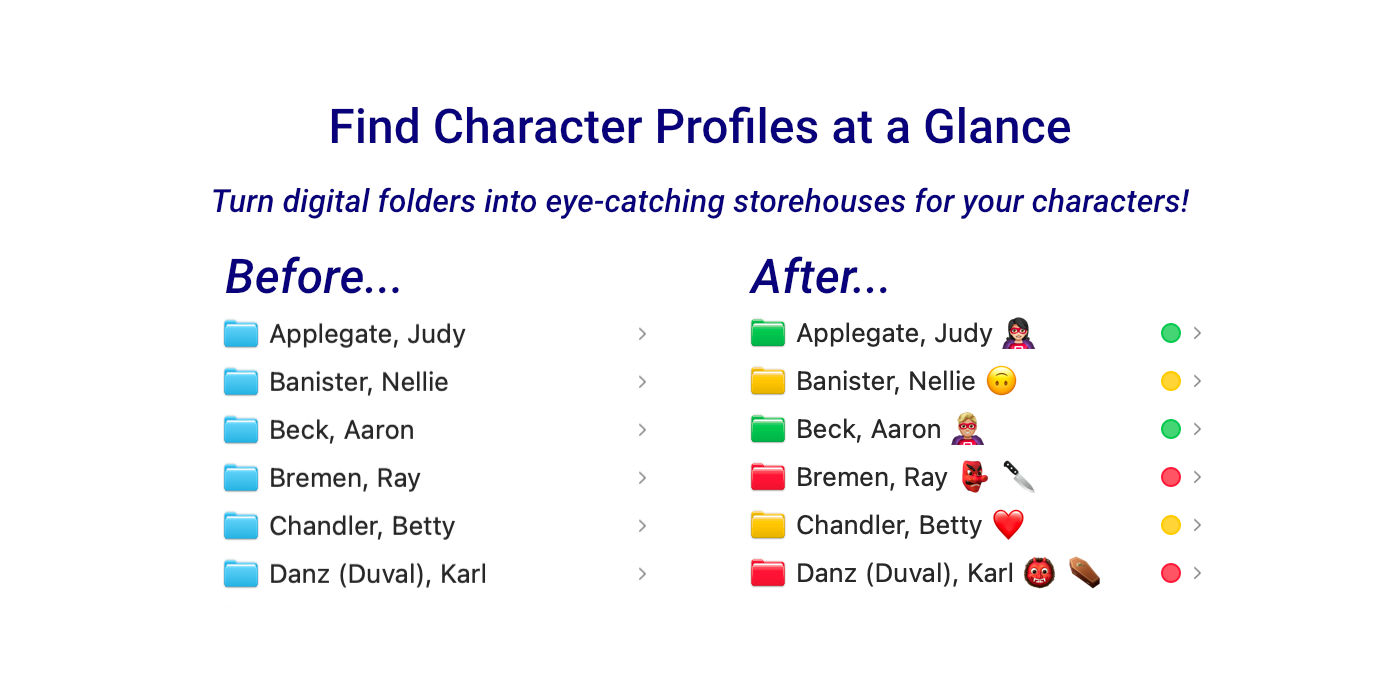
Within a book series, readers want consistent character names, descriptions, and traits. A problem occurs if uncle Karl died in the first book but miraculously reappeared in the third book. Another problem is referring to characters by different names and spelling. Character profiles help to solve those problems, but only if you can easily keep the correct character information throughout the series.
To solve the problem, organize your digital character profiles in colored file folders and Emojis. Then, you can see at a glance the essential character names, traits, and roles.
Benefits of Character Folders with Emojis and Color
- Find what you’re looking for more quickly.
- Preserve the consistency of names and spelling across a book series.
- Highlight roles of protagonists, antagonists, and supporting cast.
- Mark characters with unrevealed secrets (e.g., show killer with a 🔪).
- Show which characters died (e.g., note deceased with a ⚰️).
- Enhance filing and retrieving details more accurately within a book series.
Assign Useful Definitions to Emojis
You choose the emojis that fit your preferences and stories. For example:

Define what makes the most sense for your story and writing style. For example:
Green Folder
Denotes a protagonist with an emoji to show the story’s hero (e.g., 🦸🏻♀️ or 🦸🏼♂️).
Golden Folder
Marks support cast and an emoji can show a role (e.g., ❤️ love interest).
Red Folder
Stores an antagonist with an emoji to convey the evil villain (e.g., 👺).
How to Add Emojis and Colors to Folders
Follow these steps to add emojis and colors to folders.
Windows OS:
- Add Emojis to Folder Name:
- Right-click on the folder you want to rename and choose “Rename.”
- While renaming, press Win + . (period) or Win + ; (semicolon) to open the Emoji Panel.
- Browse through the emojis or use the search bar to find a specific one. Click on the emoji you want to add.
- After selecting the emoji, press Enter to save the new folder name.
- Change Folder Color:
- Right-click on the folder you want to change, and a menu will show.
- Select “Properties” from the menu and select the “Customize” tab.
- Click on “Change Icon” and choose the new icon with the color you want.
macOS:
- Add Emojis to Folder Name:
- Click on the Folder to Rename: Click on the folder name to rename it.
- Position cursor where you want the emoji. Use the keyboard shortcut Control + Command + Space to open the emoji picker. Select the emoji you want to add.
- Finish the renaming process by pressing Enter.
- Change Folder Color:
- Right-click on the file folder you want to change color. Then from the menu, select “Customize Folder” and press the “+” sign.
- Choose “Edit All Tags…” and then add the name and color.
- Once you’ve added the names and colors, you can select from that list.
Your Thoughts?
How can you combine emojis and color folders to help file and find characters?
13 responses to “Add Emojis and Colors to Character Folders”
I love the emoji idea and I never knew you could change the file colors, cool!
That’s a fun idea, Grant. I keep an Excel spreadsheet, but it does take a while to set up and maintain. Fortunately, I’ve never had a dead character come back to life. Lol. Thanks for the tip!
Like you, I created this massive spreadsheet with columns. Then I discovered the shorthand of emojis. The emojis appear to work in most apps and filing systems. They even simplified my spreadsheets.
Yup – massive spreadsheets with columns. Lol.
What a great visual way to keep the story straight! Thanks, Grant!
You’re welcome, Wynne. I’m visual, so the emojis and color fuel my creative engine. On a macOS machine, one touch of the 🌎 key opens the emoji menu. The key combination of Shift+Command+C opens the 🖍️ color menu.
That’s a great idea, and didn’t know I could do it!
If you think others would find it useful, please share in your tech updates.
What a clever idea! I’ll have to add a pistol and a tarot card next to my current WIP villain.
Fantastic, Priscilla! It’s easy and fun to see emojis (e.g., a quirky character). Not mentioned, but there are a ton of symbols to highlight roles and traits.
Great ideas, Grant. I’ll have to keep this post handy.
Thanks, Anneli. Using the colors and emojis also works in Scrivener.
Good to know.